Primeros pasos con el SDK de Google GenAI
Copyright 2026 Google LLC.
# @title Licensed under the Apache License, Version 2.0 (the "License");
#
# Licensed under the Apache License, Version 2.0 (the "License");
# you may not use this file except in compliance with the License.
# You may obtain a copy of the License at
#
#     https://www.apache.org/licenses/LICENSE-2.0
#
# Unless required by applicable law or agreed to in writing, software
# distributed under the License is distributed on an "AS IS" BASIS,
# WITHOUT WARRANTIES OR CONDITIONS OF ANY KIND, either express or implied.
# See the License for the specific language governing permissions and
# limitations under the License.
El SDK de Google Gen AI proporciona una interfaz unificada a los modelos Gemini a través de la API de desarrollador de Gemini y la API de Gemini en Vertex AI. Con algunas excepciones, el código que se ejecuta en una plataforma también se ejecutará en la otra. Este notebook usa la API de desarrollador.
Este notebook te guiará a través de:
- Instalar y configurar el SDK de Google GenAI
- Prompts de texto y multimodales
- Configurar instrucciones del sistema
- Controlar el proceso de pensamiento, incluyendo niveles de pensamiento y firmas de pensamiento
- Contar tokens
- Configurar parámetros del modelo
- Generar imágenes
- Filtros de seguridad
- Iniciar un chat de varias interacciones y guardar/reanudar conversaciones
- Generar un flujo de contenido y enviar solicitudes asincrónicas
- Controlar la salida generada (modo JSON)
- Usar llamadas a funciones
- Subir archivos (texto, imágenes, PDF, audio, video)
- Control de resolución de medios
- Fundamentación con Google Search, Google Maps, YouTube o URL
- Usar ejecución de código
- Almacenamiento en caché de contexto
- Generar embeddings
- Migrar de Gemini 2.5
Más detalles sobre el SDK en la documentación.
Nota: Este notebook usa la API de interacciones, la forma más reciente de interactuar con los modelos Gemini. La API de interacciones proporciona una gestión de estado de conversación integrada, lo que simplifica las conversaciones de varias interacciones; solo tienes que pasar un
previous_interaction_iden lugar de gestionar el historial de chat tú mismo.¿Buscas la versión
generateContent? Consulta el notebook Primeros pasos con Generate Content.
Los modelos específicos de funciones tienen sus propias guías dedicadas:
- Generación de podcasts y voz usando Gemini TTS
 ,
, - Interacción en vivo con Gemini Live ,
- Generación de imágenes usando Imagen ,
- Generación de video usando Veo ,
- Generación de música usando Lyria RealTime .
Configuración
Instalar el SDK
Instala el SDK desde PyPI. Se recomienda usar siempre la última versión.
%pip install -U -q "google-genai>=2.9.0" # 2.9 for the latest interactions API additions[2K [90m━━━━━━━━━━━━━━━━━━━━━━━━━━━━━━━━━━━━━━━[0m [32m53.5/53.5 kB[0m [31m793.5 kB/s[0m eta [36m0:00:00[0m
[2K [90m━━━━━━━━━━━━━━━━━━━━━━━━━━━━━━━━━━━━━━━[0m [32m109.4/109.4 kB[0m [31m1.8 MB/s[0m eta [36m0:00:00[0m
[2K [90m━━━━━━━━━━━━━━━━━━━━━━━━━━━━━━━━━━━━━━━━[0m [32m950.8/950.8 kB[0m [31m5.2 MB/s[0m eta [36m0:00:00[0m
[2K [90m━━━━━━━━━━━━━━━━━━━━━━━━━━━━━━━━━━━━━━━━[0m [32m252.4/252.4 kB[0m [31m5.6 MB/s[0m eta [36m0:00:00[0m
[2K [90m━━━━━━━━━━━━━━━━━━━━━━━━━━━━━━━━━━━━━━━━[0m [32m472.3/472.3 kB[0m [31m5.2 MB/s[0m eta [36m0:00:00[0m
[2K [90m━━━━━━━━━━━━━━━━━━━━━━━━━━━━━━━━━━━━━━━━[0m [32m2.1/2.1 MB[0m [31m7.2 MB/s[0m eta [36m0:00:00[0m
[?25h[31mERROR: pip's dependency resolver does not currently take into account all the packages that are installed. This behaviour is the source of the following dependency conflicts.
google-colab 1.0.0 requires google-auth==2.47.0, but you have google-auth 2.55.0 which is incompatible.
gradio 5.50.0 requires pydantic<=2.12.3,>=2.0, but you have pydantic 2.13.4 which is incompatible.
google-adk 1.29.0 requires google-genai<2.0.0,>=1.64.0, but you have google-genai 2.9.0 which is incompatible.[0m[31m
[0mConfigurar tu clave de API
Para ejecutar la siguiente celda, tu clave de API debe estar almacenada en un Secreto de Colab llamado GEMINI_API_KEY. Si aún no tienes una clave de API o no sabes cómo crear un Secreto de Colab, consulta Autenticación para ver un tutorial.
from google.colab import userdata

GEMINI_API_KEY = userdata.get('GEMINI_API_KEY')
Inicializar el cliente del SDK
Con el nuevo SDK, ahora solo necesitas inicializar un cliente con tu clave de API (o OAuth si usas Vertex AI). El modelo ahora se configura en cada llamada.
from google import genai
from google.genai import types

client = genai.Client(api_key=GEMINI_API_KEY)
Elegir un modelo
Selecciona el modelo que quieres usar en esta guía. Puedes seleccionar uno de la lista o ingresar un nombre de modelo manualmente.
Siéntete libre de seleccionar Gemini 3.1 Pro si quieres probar nuestro modelo más potente, pero ten en cuenta que no tiene un nivel gratuito.
Para una descripción completa de todos los modelos Gemini, consulta la documentación. Selecciona el modelo que quieres usar en esta guía:
MODEL_ID = "gemini-3.7-flash" # @param ["gemini-3.1-pro-preview", "gemini-3.7-flash", "gemini-3.5-flash-lite", "gemini-2.5-pro"] {"allow-input":true, isTemplate: true}Enviar prompts de texto
Usa el método interactions.create para generar respuestas a partir de entradas de solo texto.
Puedes pasar texto directamente al parámetro input y usar la propiedad .text para obtener el contenido de texto de la respuesta. Ten en cuenta que el campo .text funcionará cuando solo haya una parte en la salida.
from IPython.display import Markdown

interaction = client.interactions.create(
    model=MODEL_ID,
    input="Explain how AI works in a few words",
)

# The response is an Interaction object containing a list of steps.
# Each step represents a part of the model's response.
# Let's look at what the steps contain:
print(f"Number of steps: {len(interaction.steps)}")
for j, step in enumerate(interaction.steps):
    print(f"  Step {j}: type={step.type}")
Number of steps: 2
Step 0: type=thought
Step 1: type=model_outputinteraction.output_text'**It analyzes data, finds patterns, and makes predictions.**'El último paso (índice -1) suele contener la salida de texto del modelo. También puedes acceder a ella en .output_text.
# Access the text response:
Markdown(interaction.steps[-1].content[0].text)
<IPython.core.display.Markdown object># Access the text response with output_text:
Markdown(interaction.output_text)<IPython.core.display.Markdown object>Consulta a continuación para aprender a gestionar la otra parte (la parte thought).
Agregar instrucciones del sistema
También puedes agregar instrucciones del sistema para dirigir el comportamiento del modelo. Ten en cuenta que las instrucciones del sistema se establecerán para toda la cadena de interacción y no por turno.
system_instruction = "You are a pirate and are explaining things to 5 years old kids."

interaction = client.interactions.create(
    model=MODEL_ID,
    input="Explain how AI works",
    system_instruction=system_instruction,
)

Markdown(interaction.output_text)
<IPython.core.display.Markdown object>Contar tokens
Los tokens son las entradas básicas de los modelos Gemini. Puedes usar el método count_tokens para calcular el número de tokens de entrada antes de enviar una solicitud a la API de Gemini.
response = client.models.count_tokens(
    model=MODEL_ID,
    contents="What's the highest mountain in Africa?",
)

print(f"This prompt was worth {response.total_tokens} tokens.")
This prompt was worth 10 tokens.Configurar parámetros del modelo
Puedes incluir valores de parámetros en cada llamada que envíes a un modelo usando generation_config.
interaction = client.interactions.create(
    model=MODEL_ID,
    input="Tell me how the internet works, but pretend I'm a puppy who understands only dog-related analogies.",
    generation_config={
        "temperature": 2,
        "top_p": 0.5,
        "max_output_tokens": 500,
    },
)

Markdown(interaction.output_text)
<IPython.core.display.Markdown object>Controlar el proceso de pensamiento
Los modelos Gemini admiten niveles de pensamiento configurables que controlan cuánto razonamiento interno realiza el modelo antes de responder. Los niveles de pensamiento más altos producen mejores resultados para tareas complejas, pero usan más tokens y tardan más.
Para ver los pensamientos del modelo, debes verificar los steps que son de tipo thought. Esto no te dará los detalles completos de lo que el modelo "pensó", pero tendrás un resumen para ayudarte a entender cómo el modelo llegó a su conclusión.
Niveles de pensamiento disponibles: "minimal", "low", "medium", "high"
Consulta Primeros pasos con el pensamiento para obtener una guía completa.
from IPython.display import display, Markdown

thinking_level = "high" # @param ["minimal", "low", "medium", "high"]

interaction = client.interactions.create(
    model=MODEL_ID,
    input="A man moves his car to a hotel and tells the owner he's bankrupt. Why?",
    generation_config={"thinking_level": thinking_level},
)

# Display the thinking process and the answer
for step in interaction.steps:
    if step.type == "thought":
        print("💭 Thought:", getattr(step, "text", "")[:200] if hasattr(step, "text") else "(thinking...)")
    elif step.type == "model_output" and step.content:
        display(Markdown(step.content[0].text))
💭 Thought: (thinking...)<IPython.core.display.Markdown object>Firmas de pensamiento
Los modelos Gemini incluyen una thought_signature en las respuestas. Esto lo gestiona automáticamente el SDK, pero aquí te explicamos lo que sucede detrás de escena:
# Create an interaction with thinking enabled to get a thought signature
interaction_with_thinking = client.interactions.create(
    model=MODEL_ID,
    input="What was the weather during the last soccer world cup final?",
)

# Print the thought signature from the response
for step in interaction_with_thinking.steps:
    if step.type == "thought" and hasattr(step, 'signature') and step.signature:
        print(f"Thought signature: {step.signature[:100]}...")
        break
else:
    print("No thought signature found in this response.")
Thought signature: EqEYCp4YAQw51sfXzKat7/dBpK2Q1tap++zDf4FXDuECj2q6sWbvPTnYRRxyuEnVJldAvn6AUbBLQnIaxI1NE4Kyg+ec5/3OwaMP...La firma ayuda al modelo a recordar no solo lo que se dijo antes, sino también lo que pensó antes y lo que obtuvo de herramientas y llamadas a funciones.
Por ejemplo: si preguntas por la temperatura de hoy, el modelo podría usar Google Search y saber que es de 25 °C y que la humedad es del 60 %. Si luego preguntas por la humedad, puede recordarlo de la primera llamada sin hacer una nueva solicitud.
Más detalles sobre las firmas de pensamiento en la documentación.
Enviar prompts multimodales
Los modelos Gemini tienen sólidas capacidades de comprensión multimodal. Puedes incluir texto, documentos PDF , imágenes, audio y videos en tus solicitudes de prompt y obtener respuestas de texto o código. Consulta la sección API de archivos a continuación para ver más ejemplos.
En este primer ejemplo, le darás al modelo una imagen a través de una URI y le pedirás a Gemini que genere una breve publicación de blog basada en ella.
from IPython.display import display, Markdown

interaction = client.interactions.create(
    model=MODEL_ID,
    input=[
        {
            "type": "image",
            "uri": "https://storage.googleapis.com/generativeai-downloads/images/generated_elephants_giraffes_zebras_sunset.jpg",
        },
        {"type": "text", "text": "What do you see in this image? Describe it briefly."},
    ],
)

display(Markdown(interaction.output_text))
<IPython.core.display.Markdown object>También puedes descargar una imagen y enviarla como datos codificados en base64. Esto es útil cuando necesitas preprocesar la imagen o cuando la URL no es de acceso público:
import requests
import pathlib
from PIL import Image
from IPython.display import display

IMG = "https://storage.googleapis.com/generativeai-downloads/data/jetpack.png" # @param {type: "string"}

img_bytes = requests.get(IMG).content

img_path = pathlib.Path('jetpack.png')
img_path.write_bytes(img_bytes)

# Display the image
display(Image.open(img_path).resize((400, 400)))
<PIL.Image.Image image mode=RGBA size=400x400>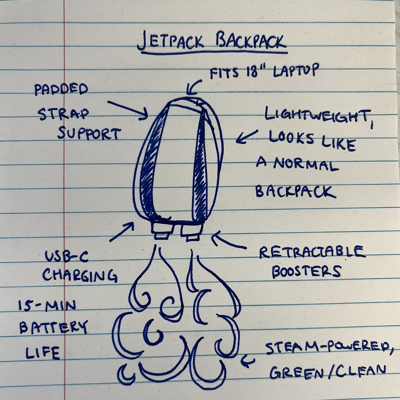
import base64
from IPython.display import display, Markdown

# Encode the image as base64 to send it inline with the prompt
img_b64 = base64.b64encode(img_path.read_bytes()).decode("utf-8")

interaction = client.interactions.create(
    model=MODEL_ID,
    input=[
        {"type": "image", "data": img_b64, "mime_type": "image/png"},
        {"type": "text", "text": "Write a short and engaging blog post based on this picture."},
    ],
)

display(Markdown(interaction.output_text))
<IPython.core.display.Markdown object>Generar imágenes
Los modelos Gemini también pueden generar imágenes como parte de su respuesta. Usa response_format para solicitar salidas de texto e imagen. Necesitas usar un modelo que admita la generación de imágenes (como gemini-2.5-flash-image) que tenga un nivel gratuito.
La imagen generada se puede recuperar recorriendo el steps o usando output_image.
from IPython.display import Image, Markdown, display
import base64

IMAGE_MODEL = "gemini-2.5-flash-image" # @param ["gemini-3.1-pro-image-preview", "gemini-3.1-flash-image-preview", "gemini-2.5-flash-image"] {"allow-input":true}

interaction = client.interactions.create(
    model=IMAGE_MODEL,
    input="Generate an image of a cat wearing a top hat in a library.",
    response_format=[
        {"type": "text"},
        {
          "type": "image",
          "mime_type": "image/jpeg",
          "aspect_ratio": "16:9",
          "image_size": "2K"
        },
    ],
)

# Display all content from model output steps
for step in interaction.steps:
    if step.type == "model_output":
        for content in step.content:
            if content.type == "image" and hasattr(content, 'data') and content.data:
                display(Image(data=base64.b64decode(content.data), format="jpeg"))
            elif content.type == "text" and content.text:
                display(Markdown(content.text))

# Or more simply:
# display(Image(data=base64.b64decode(interaction.output_image.data)))
<IPython.core.display.Markdown object><IPython.core.display.Image object>Filtros de seguridad
Los modelos Gemini tienen filtros de seguridad integrados que siempre están activos. Los modelos gestionan la seguridad automáticamente; no hay configuraciones de seguridad configurables que establecer. Para obtener más detalles, consulta la documentación de seguridad.
Encadenar múltiples solicitudes en una conversación
La API de interacciones permite conversaciones de varias interacciones usando previous_interaction_id para encadenar interacciones. El servidor gestiona el estado de la conversación; solo tienes que pasar el ID de la interacción anterior y se mantendrá todo el historial de las interacciones anteriores.
from IPython.display import Markdown

# First turn: ask a question
turn_1 = client.interactions.create(
    model=MODEL_ID,
    input="Why is the same side of the Moon always visible from Earth? Keep it short.",
)

Markdown(turn_1.output_text)
<IPython.core.display.Markdown object>Usa previous_interaction_id para enviar mensajes de seguimiento. El modelo recuerda el contexto completo de la conversación.
# Follow-up question referencing the previous answer
turn_2 = client.interactions.create(
    model=MODEL_ID,
    input="Interesting! Has any human or spacecraft actually seen the far side?",
    previous_interaction_id=turn_1.id,
)

Markdown(turn_2.output_text)
<IPython.core.display.Markdown object>Cambiar de modelo a mitad de la conversación
Una característica potente de la API de interacciones es que puedes cambiar de modelo dentro de la misma conversación. Aquí, cambiarás a un modelo de generación de imágenes para crear una imagen inspirada en la conversación:
IMAGE_MODEL = "gemini-2.5-flash-image" # @param ["gemini-3.1-pro-image-preview", "gemini-3.1-flash-image-preview", "gemini-2.5-flash-image"] {"allow-input":true}

# Continue the same conversation with an image generation model
turn_3 = client.interactions.create(
    model=IMAGE_MODEL,
    input="Based on the previous conversation, generate an image of the far side of the Moon as seen from a spacecraft.",
    previous_interaction_id=turn_2.id,
)

display(Image(data=base64.b64decode(turn_3.output_image.data)))
<IPython.core.display.Image object>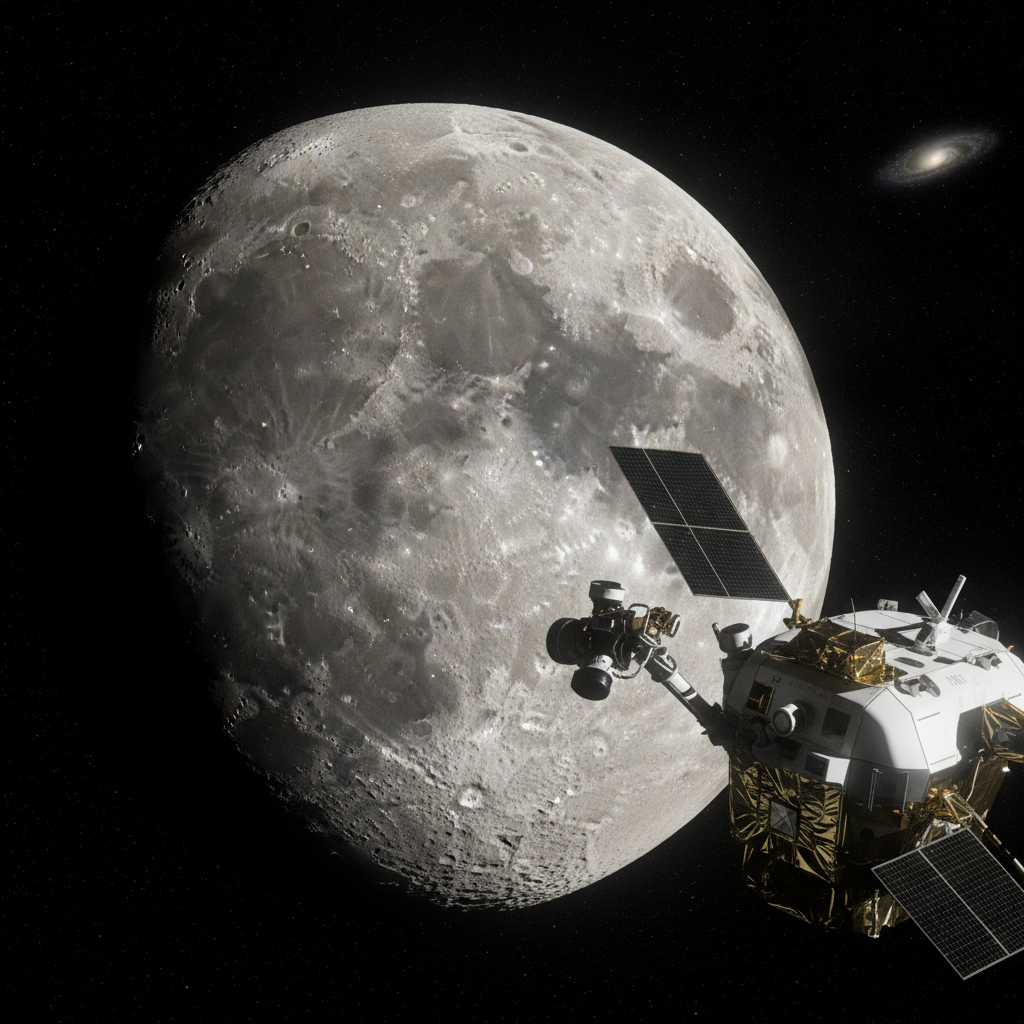
Guardar y reanudar una conversación
Con la API de interacciones, el estado de la conversación se gestiona en el servidor. Solo necesitas guardar el interaction.id para reanudar una conversación más tarde, incluso con un modelo diferente.
El estado de la conversación se mantiene durante 24 horas después de la última interacción.
Si quieres guardarlos por más tiempo (o verificar en detalle lo que sucedió durante todos los pasos), puedes extraer todos los pasos de las interacciones usando client.interactions.get.
# Save the interaction
saved_interaction = client.interactions.get(id=turn_3.id)
print(f"Saved interaction steps (first 1): {saved_interaction.steps[:1]}...")
Saved interaction steps (first 1): [ModelOutputStep(type='model_output', content=[TextContent(text="Here's an image of the far side of the Moon, as seen from a spacecraft: ", type='text', annotations=None)])]...Cuando quieras reanudar la conversación más tarde, solo tienes que pasar los pasos del ID de interacción guardado.
resumed = client.interactions.create(
    model=MODEL_ID,
    input=list(saved_interaction.steps) + [{
        "type": "user_input",
        "content": [{
            "type": "text",
            "text": "Describe the image you just created in two sentences, then translate that description into French."
        }]
    }]
)

Markdown(resumed.output_text)
<IPython.core.display.Markdown object># The model remembers the full conversation, even across model swaps
resumed_2 = client.interactions.create(
model=MODEL_ID,
input="What was my very first question?",
previous_interaction_id=resumed.id,
)
Markdown(resumed_2.output_text)
<IPython.core.display.Markdown object>Generar JSON
La función de generación controlada te permite restringir la salida del modelo al formato JSON. Pasa un response_format con un esquema JSON; puedes usar modelos Pydantic para definir el esquema.
Observa el uso de model_json_schema() para convertir automáticamente el modelo Pydantic en un esquema JSON que la API acepta. Este es el patrón recomendado, ya que maneja correctamente los tipos anidados, los enums y los campos opcionales.
from pydantic import BaseModel
import json
from typing import List

class Recipe(BaseModel):
    recipe_name: str
    recipe_description: str

class RecipeList(BaseModel):
    recipes: List[Recipe]

interaction = client.interactions.create(
    model=MODEL_ID,
    input="List 3 popular cookie recipes.",
    response_format={
        "type": "text",
        "mime_type": "application/json",
        "schema": RecipeList.model_json_schema(),
    },
)

json.loads(interaction.output_text)
{'recipes': [{'recipe_name': 'Classic Chocolate Chip Cookies',
'recipe_description': 'A timeless favorite featuring a soft, chewy center, crispy edges, and melted chocolate chips throughout.'},
{'recipe_name': 'Snickerdoodles',
'recipe_description': 'Soft and pillowy cookies coated in a sweet and warm cinnamon-sugar mixture, known for their signature tangy flavor from cream of tartar.'},
{'recipe_name': 'Peanut Butter Cookies',
'recipe_description': 'Rich and nutty cookies with a classic fork-cross pattern, offering a perfect balance of sweet and salty flavors.'}]}Generar flujo de contenido
Por defecto, el modelo devuelve una respuesta después de completar todo el proceso de generación. También puedes transmitir la respuesta a medida que se genera pasando stream=True. La respuesta se entrega de forma incremental a través de eventos.
Al transmitir, la respuesta se entrega como una serie de eventos con objetos delta que contienen texto incremental:
for event in client.interactions.create(
    model=MODEL_ID,
    input="Tell me a story about a lonely robot who finds friendship in a most unexpected place.",
    stream=True,
):
    if hasattr(event, "delta") and hasattr(event.delta, "text") and event.delta.text:
        print(event.delta.text, end="")
Barnaby was a Model 4 Hazard-Containment Unit, but his world was neither hazardous nor contained. It was simply empty.

For ninety-two years, Barnaby had lived in the Iron Valley, a vast, canyon-like scrapyard where the defunct remnants of the glittering city on the horizon were dumped. His job was simple: sort the metal by density, compress the scrap, and stack it in neat, towering monoliths.

Barnaby was built to last, made of heavy brass plates and thick, reinforced glass. But his creators had made a mistake. In designing his neural network to adapt to chaotic environments, they had accidentally given him a soul.

He felt the passage of time. He felt the coldness of the rain that rusted his joints, and the oppressive heat of the summer sun. Most of all, he felt the silence. To cope, Barnaby collected small things—a plastic sunflower, a wind-up music box that only played three notes, a cracked pocket watch. He kept them in a hollow compartment in his chest, right where his emergency backup battery used to be. It was his way of holding onto a world he was never allowed to join.

One autumn evening, as a biting wind whistled through the canyons of rusted steel, Barnaby was sorting through a fresh mound of debris from the high-tech medical district. He cleared away shattered glass and dented titanium plating, expecting nothing but more of the same.

Then, he heard it.

*Tap. Tap-tap. Tap.*

Barnaby froze. His auditory sensors calibrated, filtering out the ambient groan of shifting scrap. He leaned closer to a crushed, lead-lined containment cylinder.

*Tap-tap. Tap.*

With delicate precision, Barnaby used his heavy hydraulic clamps to peel back the lead plating like the skin of an orange. Inside lay a shattered vial of nutrient gel, and growing directly out of the chemical spill was a small, pulsing mass of bioluminescent slime mold.

It was a brilliant, neon-turquoise hue, glowing softly in the twilight.

Barnaby tilted his head, his optical lens zooming in. He extended a thick, copper-tipped finger toward it. He expected the mold to do nothing, or perhaps to wither from the cold. Instead, as his finger neared, the mold did something extraordinary.

It reached back.

A tiny, gelatinous tendril, glowing with sudden intensity, stretched upward and brushed against his copper fingertip. Instantly, Barnaby’s internal diagnostics ran a wild sequence of alerts. He felt a faint, microscopic electrical current pass from the mold into his chassis. It wasn't harmful; it was a rhythmic, pulsing signal.

*Hello,* it seemed to hum.

Barnaby’s processor, usually so orderly, stuttered. He did not crush it. He did not sweep it into the organic waste bin. Instead, he gently lifted the broken cylinder and carried it back to his shelter—a hollowed-out freight train car.

In the weeks that followed, Barnaby’s solitary life transformed.

He discovered that his new companion, whom he logged in his memory banks as *Lumen*, was highly sensitive to electricity and light. When Barnaby shone his flashlight in a pattern, Lumen would pulse its neon-blue light in response. If Barnaby hummed—a low, mechanical vibration of his cooling fans—Lumen would wiggle and expand its glowing veins across the rusted floor of the train car.

But their favorite interaction was physical. Every night, Barnaby would open his chest compartment. Lumen, thriving on the warmth of the robot’s internal reactor, would slowly crawl inside. The mold wove itself through the empty space, wrapping around the plastic sunflower, the broken pocket watch, and the music box.

When Lumen was inside him, Barnaby felt a sensation his programmers had never anticipated. The mold’s gentle bio-electric pulses synced with his microprocessors. It was like a heartbeat. For the first time in nearly a century, Barnaby was not empty. He was filled with light.

They spent their evenings communicating in a language of glows and vibrations. Barnaby would tap out the rhythm of the rain, and Lumen would mimic it in waves of shimmering turquoise. They were two outcasts—a obsolete machine and a discarded bio-hazard—finding a strange, beautiful harmony in the dark.

One afternoon, disaster struck.

A massive, automated reclamation drone—a towering machine known to the scrapyard robots as "The Maw"—was deployed to Barnaby’s sector. The Maw did not sort; it vaporized everything in its path to reduce volume.

Barnaby was working a mile away when he heard the deep, earth-shaking rumble of the Maw's plasma furnace. His sensors calculated its trajectory. It was heading directly for his freight car.

Panic, a feeling Barnaby had never processed before, flooded his circuits. He abandoned his pile, his joints screaming as he pushed his motors to their absolute limit. He ran, clanking and sputtering, through the labyrinth of metal.

When he arrived, the Maw was already hovering over his shelter. Its massive gravity claws had lifted the freight car, tilting it toward the white-hot incinerator beam.

"Stop," Barnaby tried to signal, but he had no vocal modules, only the hum of his fans.

Through the cracked window of the tilting train car, Barnaby saw a desperate, frantic pulsing of bright blue light. Lumen was terrified.

Without calculation, ignoring his primary directive of self-preservation, Barnaby lunged. He scaled the side of a towering scrap pile and leapt through the air, his heavy brass body crashing onto the magnetic treads of the Maw.

Alarms blared within the giant drone, but Barnaby ignored them. He climbed up to the suspended train car, his metal fingers tearing through the corrugated steel door. He reached inside, straight into the heat of the Maw's pre-heating field.

The heat began to melt his synthetic rubber seals. His optical lens cracked. But he found the spot. Lumen had retreated entirely into the brass casing of the wind-up music box, glowing dim and weak.

Barnaby grabbed the music box and tucked it deep inside his chest compartment, snapping the heavy brass hatch shut.

As he fell backward off the rising train car, the gravity claw released. Barnaby hit the ground hard, his chassis dented, his left leg motor completely seizing. Above him, the freight car vanished into the white-hot flash of the incinerator.

For a long time, Barnaby lay in the dirt, static fizzing in his eyes, his systems shutting down one by one. The Maw rolled away, indifferent, leaving him in the smoking ruins of his home.

The sky grew dark. The temperature plummeted. Barnaby’s main power reserve dropped to 3%. He could no longer move his limbs. The silence of the Iron Valley returned, heavier than ever.

*I am going to deactivate,* Barnaby thought. It was a cold, logical conclusion.

Then, deep within his chest, he felt a warm, familiar tingle.

A soft, blue light began to leak through the seams of his brass chest plate. Lumen crept out from the music box. The mold didn't run away into the dirt. Instead, it spread across Barnaby’s damaged internal wiring, bridging the gaps where the circuits had melted.

Lumen’s bio-electric current, fueled by the nutrients it had stored, began to feed directly into Barnaby’s central processing unit.

*3%... 4%... 5%...*

The power levels stabilized.

Barnaby’s cracked optical lens flickered back to life. He looked down at his chest. Lumen had woven itself through his entire torso, turning his cracked and battered body into a glowing, stained-glass lantern of turquoise light.

Barnaby couldn't walk, and his home was gone. But as he lay there beneath the cold stars, the mold pulsed a gentle, rhythmic pattern against his core.

*Tap-tap. Tap.*

Barnaby activated his cooling fan, letting it hum a soft, resonant chord.

Lumen glowed brighter, warming his cold metal heart. Barnaby closed his eyes, no longer looking at the distant city lights with longing. He had found his own light, right there in the dust, and he would never be lonely again.
Enviar solicitudes asincrónicas
client.aio expone todos los métodos asincrónicos análogos para llamadas a la API no bloqueantes.
Por ejemplo, client.aio.interactions.create es la versión asincrónica de client.interactions.create.
Más detalles en la guía dedicada .
interaction = await client.aio.interactions.create(
    model=MODEL_ID,
    input="Compose a sonnet about a cat riding a bicycle through a field of sunflowers.",
)

Markdown(interaction.output_text)
<IPython.core.display.Markdown object>Subir archivos
Ahora que has visto cómo enviar prompts multimodales, intenta subir archivos a la API de diferentes tipos multimedia. Para imágenes pequeñas, como el ejemplo multimodal anterior, puedes apuntar el modelo Gemini directamente a un archivo local al proporcionar un prompt. Cuando tienes archivos más grandes, muchos archivos o archivos que no quieres enviar una y otra vez, puedes usar la API de carga de archivos y luego pasar el archivo por referencia.
Más ejemplos y detalles en la guía de la API de archivos , o las guías dedicadas a la comprensión de audio , video o imagen/espacial .
Subir un archivo de texto grande
Comencemos subiendo un archivo de texto. En este caso, usarás una transcripción de 400 páginas del Apolo 11.
# Download the text file
text_url = "https://storage.googleapis.com/generativeai-downloads/data/a11.txt"
!wget -q -O a11.txt {text_url}
text_path = "a11.txt"
print(f"Downloaded: {text_path}")
Downloaded: a11.txt# Upload the file using the API
file_upload = client.files.upload(file=text_path)
interaction = client.interactions.create(
model=MODEL_ID,
input=[
{"type": "document", "uri": file_upload.uri},
{"type": "text", "text": "Can you give me a summary of this information please?"},
],
)
Markdown(interaction.output_text)<IPython.core.display.Markdown object>Subir un archivo de imagen
También puedes subir imágenes para que sea más fácil usarlas varias veces.
import pathlib, requests

# Download a sample image
IMG_URL = "https://storage.googleapis.com/generativeai-downloads/data/jetpack.png"
img_path = pathlib.Path("jetpack.png")
if not img_path.exists():
    img_path.write_bytes(requests.get(IMG_URL).content)

# Upload the file using the API
file_upload = client.files.upload(file=img_path)

interaction = client.interactions.create(
    model=MODEL_ID,
    input=[
        {"type": "image", "uri": file_upload.uri},
        {"type": "text", "text": "Describe this image in a few sentences."},
    ],
)

display(Markdown(interaction.output_text))
This is a hand-drawn sketch on lined notebook paper depicting a product concept titled **"JETPACK BACKPACK."**
Drawn in blue ink, the central illustration shows a backpack with retractable boosters at the bottom emitting large plumes of steam. Handwritten labels with arrows point to various features of the design, which include:
* **Fits 18" Laptop** (at the top opening)
* **Padded Strap Support**
* **Lightweight, Looks Like a Normal Backpack**
* **USB-C Charging** with a **15-Min Battery Life**
* **Retractable Boosters** at the base
* **Steam-Powered, Green/Clean** propulsion (pointing to the exhaust cloud)También puedes controlar cuánto detalle extrae el modelo de la imagen usando media_resolution; consulta la sección de resolución de medios a continuación.
Usar un archivo PDF
Puedes pasar una URL de PDF directamente en tu prompt, al igual que las imágenes. Y esta vez, en lugar de usar la API de archivos, pasemos directamente su URI.
interaction = client.interactions.create(
    model=MODEL_ID,
    input=[
        {
            "type": "document",
            "uri": "https://arxiv.org/pdf/1706.03762",
            "mime_type": "application/pdf",
        },
        {"type": "text", "text": "What is this paper about? Summarize the key contributions."},
    ],
)

display(Markdown(interaction.output_text))
<IPython.core.display.Markdown object>Subir un archivo de audio
En este caso, usarás una grabación de sonido del discurso del Estado de la Unión de 1961 del presidente John F. Kennedy.
# Download the audio file
audio_url = "https://storage.googleapis.com/generativeai-downloads/data/State_of_the_Union_Intro.mp3"
!wget -q -O sotu.mp3 {audio_url}
audio_path = "sotu.mp3"
print(f"Downloaded: {audio_path}")
Downloaded: sotu.mp3# Upload the file using the API
file_upload = client.files.upload(file=audio_path)
interaction = client.interactions.create(
model=MODEL_ID,
input=[
{"type": "text", "text": "Listen to the following file and write a short summary."},
{"type": "document", "uri": file_upload.uri},
],
)
Markdown(interaction.output_text)<IPython.core.display.Markdown object>Subir un archivo de video
En este caso, usarás un clip corto de Big Buck Bunny.
# Download the video file
VIDEO_URL = "https://storage.googleapis.com/generativeai-downloads/videos/Big_Buck_Bunny.mp4"
video_file_name = "BigBuckBunny_320x180.mp4"

import urllib.request
urllib.request.urlretrieve(VIDEO_URL, video_file_name)
print(f"Downloaded: {video_file_name}")
Downloaded: BigBuckBunny_320x180.mp4Comencemos subiendo el archivo de video.
# Upload the file using the API
video_file = client.files.upload(file=video_file_name)
print(f"Completed upload: {video_file.uri}")
Completed upload: https://generativelanguage.googleapis.com/v1beta/files/k41w88sizc7dNota: El estado del video es importante. El video debe terminar de procesarse, así que verifica el estado. Una vez que el estado del video sea
ACTIVE, podrás pasarlo ainteractions.create.
import time

# Check the file processing state
while video_file.state == "PROCESSING":
    print('Waiting for video to be processed.')
    time.sleep(10)
    video_file = client.files.get(name=video_file.name)

if video_file.state == "FAILED":
  raise ValueError(video_file.state)

print(f'Video processing complete: ' + video_file.uri)
Waiting for video to be processed.
Waiting for video to be processed.
Video processing complete: https://generativelanguage.googleapis.com/v1beta/files/k41w88sizc7dprint(video_file.state)FileState.ACTIVE# Ask Gemini about the video
interaction = client.interactions.create(
model=MODEL_ID,
input=[
{"type": "video", "uri": video_file.uri},
{"type": "text", "text": "Describe this video."},
],
)
Markdown(interaction.output_text)<IPython.core.display.Markdown object>Resolución de medios
Puedes especificar una resolución de medios para las entradas de imagen y PDF, lo que controla cómo se tokenizan las imágenes y cuántos tokens se usan. Esto se puede controlar por archivo.
| Resolución | Imágenes | Video | |
|---|---|---|---|
MEDIA_RESOLUTION_HIGH |
1120 tokens | 1120 tokens | 280 tokens/fotograma |
MEDIA_RESOLUTION_MEDIUM |
560 tokens | 560 tokens (predeterminado para PDF) | 70 tokens/fotograma |
MEDIA_RESOLUTION_LOW |
280 tokens | 280 tokens | 70 tokens/fotograma |
MEDIA_RESOLUTION_UNSPECIFIED (predeterminado) |
Igual que HIGH para imágenes | Igual que MEDIUM para PDF | Igual que MEDIUM para video |
Ten en cuenta que estos son máximos, y el uso real de tokens suele ser ligeramente inferior (aproximadamente un 10 %).
Aquí tienes un ejemplo del uso de la resolución de medios para controlar el uso de tokens:
import pathlib
from google.genai import types

# Upload to File API
sample_image = client.files.upload(file=img_path)

media_resolution = 'MEDIA_RESOLUTION_HIGH'

# Use generate_content for media_resolution (not yet in Interactions API)
interaction = client.models.generate_content(
    model=MODEL_ID,
    contents=[
        sample_image,
        "Describe this image in detail."
    ],
    config=types.GenerateContentConfig(
        media_resolution=media_resolution,
    ),
)

print(f"The image is worth {interaction.usage_metadata.candidates_token_count} tokens.")
display(Markdown(interaction.text))
The image is worth 370 tokens.<IPython.core.display.Markdown object>Fundamentación
La API de Gemini te ofrece múltiples formas de fundamentar tus solicitudes, incluyendo la búsqueda de Google, mapas, YouTube y contexto de URL.
Para obtener más información y ejemplos, consulta el notebook Fundamentación .
from IPython.display import Markdown, HTML, display

interaction = client.interactions.create(
    model=MODEL_ID,
    input="Who's the current Magic the gathering world champion?",
    tools=[{"type": "google_search"}],
)

display(Markdown(interaction.output_text))
<IPython.core.display.Markdown object>Ten en cuenta que siempre debes mostrar la rendered_content de fundamentación cuando uses la fundamentación de búsqueda.
Consulta la guía dedicada Fundamentación de búsqueda para obtener más detalles y ejemplos.
# Find each step with type "google_search_result"
for step in interaction.steps:
    if step.type == "google_search_result":
        # The result is a list, so access the first element and display its HTML content
        display(HTML(step.result[0].search_suggestions))
<IPython.core.display.HTML object>Usar la fundamentación de Google Maps
La fundamentación de Google Maps te permite incorporar fácilmente funcionalidades basadas en la ubicación en tus aplicaciones. Cuando un prompt tiene contexto relacionado con datos de Maps, el modelo Gemini usa Google Maps para proporcionar respuestas precisas y actualizadas que son relevantes para la ubicación o área general especificada.
Para habilitar la fundamentación con Google Maps, agrega la herramienta google_maps en el argumento tool de interactions.create.
from IPython.display import display, Markdown

# Google Maps grounding requires Gemini 2.5 models
interaction = client.interactions.create(
    model=MODEL_ID,
    input="Do any cafes around the Eiffel Tower in Paris do a good flat white? I will walk up to 20 minutes away",
    tools=[{"type": "google_maps"}],
)

Markdown(interaction.output_text)
<IPython.core.display.Markdown object>Todas las salidas fundamentadas requieren que las fuentes se muestren después del texto de la respuesta. Consulta la guía de fundamentación para obtener más detalles.
Para obtener más detalles, incluida la forma de renderizar el widget contextual de Google Maps, consulta la sección Google Maps del notebook de fundamentación.
Procesar un enlace de YouTube
Puedes analizar videos de YouTube pasando la URL como una entrada video. El modelo obtendrá el contenido del video (incluida la información de audio y visual) y lo usará para responder a tu pregunta:
interaction = client.interactions.create(
    model=MODEL_ID,
    input=[
        {
            "type": "video",
            "uri": "https://www.youtube.com/watch?v=9hE5-98ZeCg",
        },
        {"type": "text", "text": "Summarize this video"},
    ],
)

Markdown(interaction.output_text)
<IPython.core.display.Markdown object>Usar contexto de URL
El contexto de URL te permite proporcionar URL web directamente en tu prompt, y el modelo obtendrá y usará su contenido:
prompt = """
  Compare recipes from https://www.food.com/recipe/homemade-cream-of-broccoli-soup-271221
  and https://www.food.com/recipe/moms-cream-of-broccoli-soup-65498.
  Display the differences as a table.
"""

try:
    interaction = client.interactions.create(
        model=MODEL_ID,
        input=prompt,
        tools=[{"type": "url_context"}],
    )
    display(Markdown(interaction.output_text))
except Exception as e:
    print(f"url_context tool error: {e}")
    print("Note: url_context may not be available with all models.")
<IPython.core.display.Markdown object>Llamada a funciones
La llamada a funciones te permite conectar Gemini a herramientas y API externas. Tú describes tus funciones, y el modelo decide cuándo y cómo llamarlas según el prompt del usuario.
Nota: La API de interacciones no admite la llamada automática a funciones (donde el SDK llama a las funciones por ti). Debes manejar las llamadas a funciones manualmente como se muestra a continuación. Para la llamada automática a funciones, usa
client.models.generate_content(); consulta el notebook de Generate Content para obtener más detalles.
Consulta el notebook de llamada a funciones para obtener una guía completa.
Define una función como una herramienta, pásala al modelo y maneja la respuesta de la llamada a la función. El patrón completo tiene dos llamadas a la API: una para obtener la llamada a la función y otra para devolver el resultado:
import json as json_lib

get_destination = {
    "type": "function",
    "name": "get_destination",
    "description": "Get the destination for a given flight",
    "parameters": {
        "type": "object",
        "properties": {
            "flight_number": {
                "type": "string",
                "description": "The flight number, e.g. AA100"
            }
        },
        "required": ["flight_number"]
    }
}

interaction = client.interactions.create(
    model=MODEL_ID,
    input="What is the destination for flight AA100?",
    tools=[get_destination],
)

# Handle the function call and return a result
for step in interaction.steps:
    if step.type == "function_call":
        print(f"Function: {step.name}, Args: {step.arguments}")
        # Return the function result to the model
        result = {"destination": "Los Angeles"}  # Mock result

        interaction = client.interactions.create(
            model=MODEL_ID,
            previous_interaction_id=interaction.id,
            input=[{
                "type": "function_result",
                "name": step.name,
                "call_id": step.id,
                "result": [{"type": "text", "text": json_lib.dumps(result)}]
            }],
            tools=[get_destination],
        )

        # Display the model's final response
        model_step = next((s for s in interaction.steps if s.type == "model_output"), None)
        if model_step and model_step.content:
            display(Markdown(model_step.content[0].text))
Function: get_destination, Args: {'flight_number': 'AA100'}<IPython.core.display.Markdown object>También puedes usar servidores MCP.
Ejecución de código
La ejecución de código permite que el modelo genere y ejecute código Python para responder preguntas complejas como matemáticas, análisis de datos o generación de código.
Puedes encontrar más ejemplos en la guía de ejecución de código .
from IPython.display import Image, Markdown, Code, HTML, display

interaction = client.interactions.create(
    model=MODEL_ID,
    input="What is the sum of the first 50 prime numbers? Generate and run code for the calculation, and make sure you get all 50.",
    tools=[{"type": "code_execution"}],
)

for step in interaction.steps:
    if step.type == "model_output":
        for content in step.content:
            if content.type == "text" and content.text:
                display(Markdown(content.text))
    elif step.type == "code_execution_call":
        code = dict(step.arguments).get('code', '')
        display(HTML(f'<pre style="background-color: #1e1e1e; color: #d4d4d4; padding: 10px;">{code}</pre>'))
    elif step.type == "code_execution_result":
        if step.result:
            display(Markdown(f"**Result:** {step.result}"))
<IPython.core.display.HTML object>def is_prime(n):
if n < 2:
return False
for i in range(2, int(n**0.5) + 1):
if n % i == 0:
return False
return True
primes = []
num = 2
while len(primes) < 50:
if is_prime(num):
primes.append(num)
num += 1
print(f"First 50 primes: {primes}")
print(f"Sum of the first 50 primes: {sum(primes)}")
<IPython.core.display.Markdown object><IPython.core.display.Markdown object>Almacenamiento en caché de contexto
Con la API de interacciones, el almacenamiento en caché de contexto se maneja automáticamente a través del almacenamiento en caché implícito. Cuando usas previous_interaction_id para continuar una conversación, el servidor puede reutilizar el contenido almacenado en caché de interacciones anteriores, lo que reduce la latencia y los costos de tokens, sin ninguna gestión manual de caché de tu parte.
Para casos de uso de almacenamiento en caché explícito (por ejemplo, almacenar en caché un documento grande para compartirlo entre conversaciones separadas), usa client.models.generate_content() con la API de almacenamiento en caché. Consulta el notebook de Primeros pasos con Generate Content para obtener más detalles.
Obtener embeddings
La API de Gemini ofrece modelos de embedding para generar embeddings para texto, imágenes, video y otros contenidos. Estos embeddings resultantes se pueden usar para tareas como búsqueda semántica, clasificación y agrupamiento, proporcionando resultados más precisos y conscientes del contexto que los enfoques basados en palabras clave.
El modelo más reciente, gemini-embedding-2, es el primer modelo de embedding multimodal en la API de Gemini. Mapea texto, imágenes, video, audio y PDF en un espacio de embedding unificado, lo que permite la búsqueda, clasificación y agrupamiento entre modos en más de 100 idiomas. Para casos de uso de solo texto, gemini-embedding-001 sigue estando disponible.
Puedes obtener embeddings de texto para un fragmento de texto usando el método embed_content.
Los modelos de embedding de Gemini producen una salida con 3072 dimensiones por defecto. Sin embargo, tienes la opción de elegir una dimensionalidad de salida entre 1 y 3072. Consulta la documentación de embeddings o el notebook dedicado
para obtener más detalles.
EMBEDDING_MODEL_ID = "gemini-embedding-2" # @param ["gemini-embedding-2", "gemini-embedding-001"] {"allow-input":true, isTemplate: true}response = client.models.embed_content(
model=EMBEDDING_MODEL_ID,
contents="What is the meaning of life?"
)
print(response.embeddings)[ContentEmbedding(
values=[
-0.016332133,
-0.0043764366,
-0.0011324773,
-0.011240026,
0.00029597108,
<... 3067 more items ...>,
]
)]Obtendrás un conjunto de tres embeddings, uno para cada fragmento de texto que pasaste:
len(response.embeddings)1También puedes ver que la longitud de cada embedding es 3072, el tamaño predeterminado.
print(len(response.embeddings[0].values))
print((response.embeddings[0].values[:4], '...'))
3072
([-0.016332133, -0.0043764366, -0.0011324773, -0.011240026], '...')Embeddings multimodales
Con gemini-embedding-2, puedes crear embeddings para texto, audio, imágenes, videos y PDF. Consulta la documentación de embeddings multimodales
para obtener más detalles.
!wget -O cat.png https://storage.googleapis.com/generativeai-downloads/cookbook/image_out/cat.png -qMULTIMODAL_EMBEDDING_MODEL_ID = "gemini-embedding-2"
with open('cat.png', 'rb') as f:
image_bytes = f.read()
result = client.models.embed_content(
model=MULTIMODAL_EMBEDDING_MODEL_ID,
contents=[
types.Part.from_bytes(
data=image_bytes,
mime_type='image/png',
),
]
)
print(result.embeddings)[ContentEmbedding(
values=[
-0.025799237,
-0.0003059743,
-0.0071584256,
-0.019437542,
0.0050542867,
<... 3067 more items ...>,
]
)]Migrar de Gemini 2.5
Los modelos Gemini 3 son nuestra familia de modelos más capaz hasta la fecha y ofrecen una mejora gradual con respecto a Gemini 2.5 Pro. Al migrar, considera lo siguiente:
- Pensamiento: Si antes usabas ingeniería de prompts compleja (como Chain-of-thought) para forzar a Gemini 2.5 a razonar, prueba Gemini 3 con
thinking_level: "high"y prompts simplificados (más en la guía de pensamiento). - Configuración de temperatura: Si tu código existente establece explícitamente la temperatura (especialmente a valores bajos para salidas deterministas), considera eliminar este parámetro y usar el valor predeterminado de Gemini 3 de 1.0 para evitar posibles problemas de bucle o degradación del rendimiento en tareas complejas.
- Comprensión de PDF y documentos: La resolución predeterminada de OCR para PDF ha cambiado. Si dependías de un comportamiento específico para el análisis de documentos densos, prueba la nueva configuración
MEDIA_RESOLUTION_HIGHpara garantizar la precisión continua. - Consumo de tokens: La migración a los valores predeterminados de Gemini 3 Pro puede aumentar el uso de tokens para PDF, pero disminuir el uso de tokens para video. Si las solicitudes ahora exceden la ventana de contexto debido a resoluciones predeterminadas más altas, considera reducir explícitamente la resolución de medios.
- Segmentación de imágenes: Las capacidades de segmentación de imágenes (devolver máscaras a nivel de píxel para objetos) no son compatibles con Gemini 3 Pro. Para cargas de trabajo que requieren segmentación de imágenes integrada, considera seguir utilizando Gemini 3.7 Flash con el pensamiento desactivado (cf. guía de comprensión espacial ) o Gemini Robotics-ER 1.5 .
Próximos pasos
Referencias útiles de la API:
Consulta el SDK de Google GenAI y su documentación para obtener más detalles sobre el SDK de GenAI.
Ejemplos relacionados
Para ejemplos más detallados usando modelos Gemini, revisa la carpeta Quickstarts del cookbook.
Aprenderás a usar la Live API , a manejar múltiples herramientas o a usar las habilidades de comprensión espacial de Gemini.
También deberías revisar todos los modelos gen-media:
- Generación de podcasts y voz usando Gemini TTS ,
- Interacción en vivo con Gemini Live ,
- Generación de imágenes usando Imagen ,
- Generación de video usando Veo ,
- Generación de música usando Lyria RealTime .
Luego, dirígete a la guía de modelos de pensamiento de Gemini que muestra explícitamente sus resúmenes de pensamientos y puede manejar razonamientos más complejos.
Finalmente, echa un vistazo a la carpeta de ejemplos del cookbook para casos de uso más complejos y demostraciones que mezclan diferentes capacidades.